I’m using both windows and mac. Sometimes I missed up with keyboard shortcuts. Both OS has its own plus and minus. Enter/Return key opens a folder in windows but it renames file/folder in mac, in windows double clicking on titlebar maximize window, but same thing minimizes window in mac (you have to enable it from preference > doc – “Double-click a windows titlebar to minimize”).
Global shortcuts
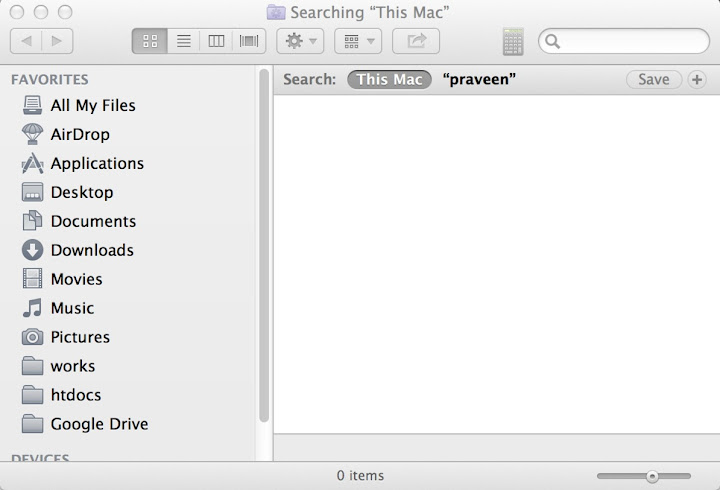
Quickly open finder
cmd + opt + spacebar = win + E
Close window cmd+w = crtl + w
Show desktop fn + f11 = win + D
Lock screen shift + ctrl + power = win + L
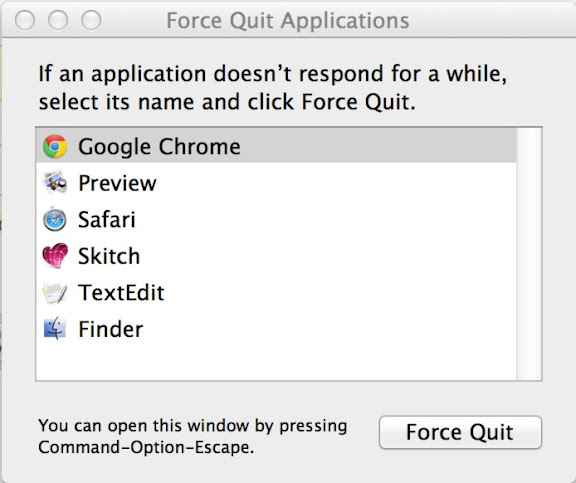
Force quit applications cmd+opt+esc = ctrl+shift+esc
Switch between opened application cmd+tab = ctrl+tab / win+tab
Switch between same application window cmd + ~
Increase volume or brightness by quarter increment shift+option+f12 – volume shift+opton+f2 – brightness

Show/Hide – Dock opt+cmd+D
Screen capture shift + cmd + 3 shift + cmd + 4
Finder shortcuts
Mac automatically refreshes every folder when something modifies [fails sometimes]. One annoying thing when working with finder is icons are not arranging automatically to grid.
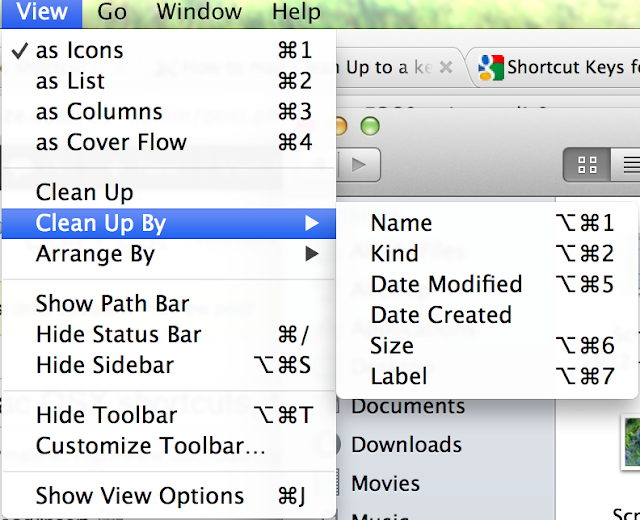
There are a few ways to arrange items in finder. Clean up command will snap item to grid. Following key stocks will arrange items in a nice way and these are roughly equal to ‘Refresh’ (F5) in windows.
cmd+opt+1 – clean up by name
cmd+opt+2 - clean up by kind
cmd+opt+5 - clean up by date modified
cmd+opt+6 - clean up by size
cmd+opt+7 - clean up by type
Tip 1: Drag and release folder while pressing cmd will arrange folder/files to grid. Tip 2 : Press opt key & right click -> ‘Arrange by’ will change to ‘Sort by’. You can sort using name, kind, size etc..
Go to folder
cmd+shift+G
network
cmd + K
using terminal
open
Open folder cmd + downarrow or cmd+o = enter
Duplicate a file/folder cmd+D
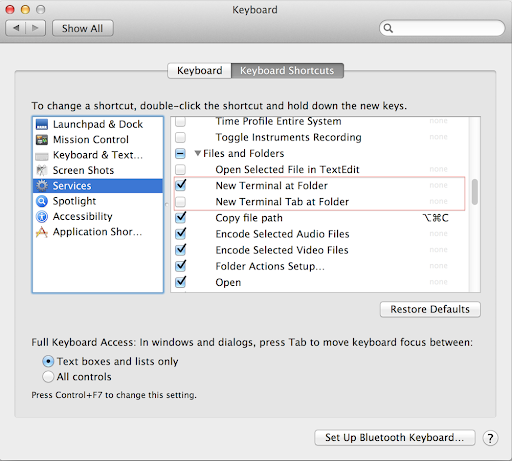
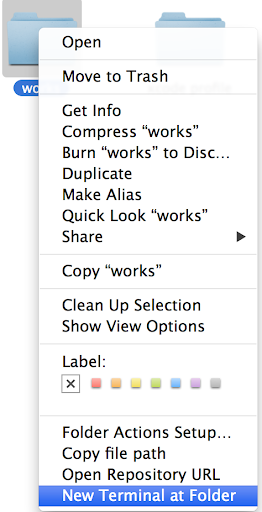
Open a folder in terminal from finder. You can use either Drag n Drop folder into terminal icon or enable service “New terminal at folder” from Preference > keyboard. Right click on any folder and select “New terminal at folder” from the context menu.
$ open .

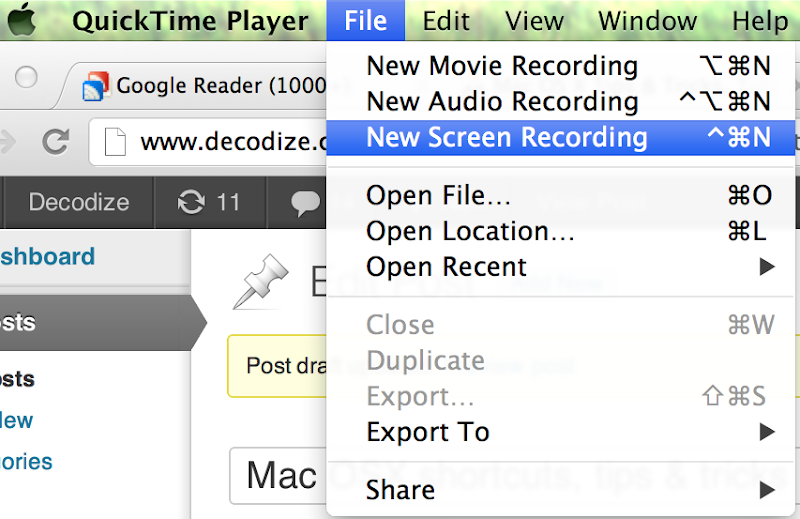
Hidden screencast tool
Quicktime has a screen capture tool.
Automator tips

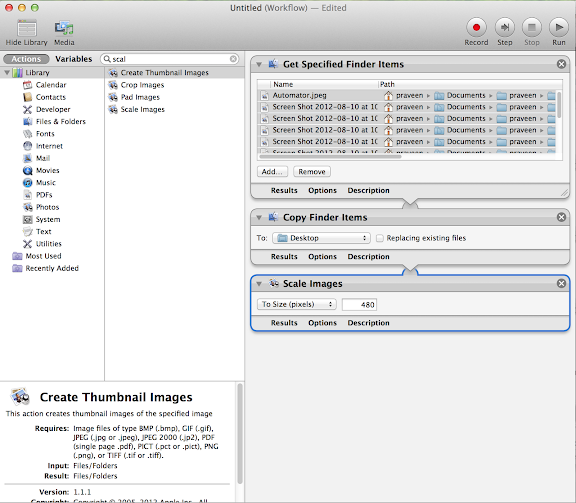
Automator is a tool that helps to automate repeated tasks.
Copy file path
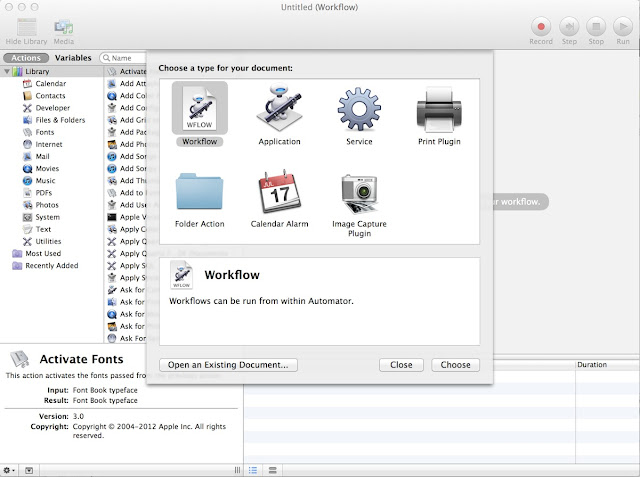
Some times you need to copy the path of a specified folder or file. You can use automator to copy the path.
- Open automator
- Select services
- Change – “service receives selected” to “file or folder” in application to “Finder“.
- Type “copy” in the filter section and drag n drop – “Copy to clipboard” to the workflow pane.
- Save it as – “Copy file path”.
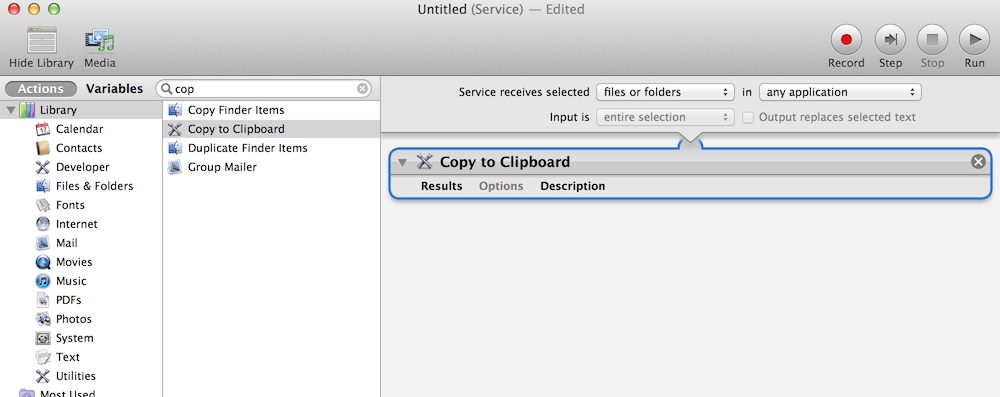
Now you can right click on any folder/file and can copy path. Assign a keyboard shortcut from Preference > keyboard.
Change image size
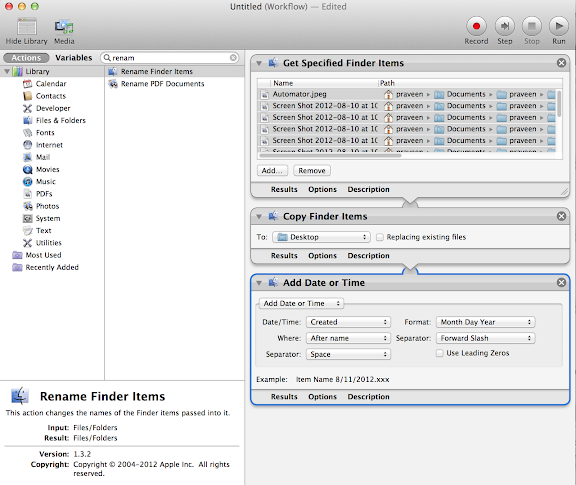
Batch renaming files
Tools
maximize window Right zoom is a little free tool that converts mac’s default maximize behavior to maximize window to all available screen space.
Quick look plugins Do a 3 finger tap on any file will reveal a quick view with some basic info. You can extend its capabilities using plugins. Check quick look plugin to find more details.
Resources
15 Automator and AppleScripts You Can’t Live Without 10 Awesome Uses for Automator Explained